
Need to merge two pictures side by side?
Whether you’re creating a before-and-after comparison, combining screenshots, showcasing products, or designing content for social media, placing two images in a single frame makes your visuals cleaner, easier to compare, and more professional. Instead of sharing multiple files, you can combine them into one high-quality image in just a few clicks.
The best part is that you don’t need Photoshop or any complicated software. The Merge JPG tool helps you to merge pictures horizontally or vertically according to your needs.
In this guide, you’ll learn how to merge two pictures side by side step by step, along with useful tips to create polished images quickly on both desktop and mobile devices.
Why Merge Two Pictures Side by Side?
Merging two pictures side by side is a simple way to present information more clearly. Instead of switching between separate images, viewers can compare both pictures in a single frame, making it easier to notice differences, similarities, or progress. It’s a popular technique for both personal and professional use. Here are some of the most common reasons to combine two pictures side by side:
- Create before-and-after comparisons: Show transformations for fitness, home renovations, photo editing, or restoration projects.
- Compare products: Display two products next to each other to highlight differences in features, colors, or designs.
- Share on social media: Create eye-catching posts, stories, and collages that are easier to view and more engaging.
- Present information clearly: Combine images for presentations, reports, school assignments, or tutorials without cluttering your slides.
- Show design revisions: Place the original and updated versions side by side to make changes easy to identify.
- Save time when sharing: Instead of sending multiple image files, merge them into one picture that’s easier to upload, email, or share through messaging apps.
How to Merge Two Pictures Side by Side Online
Combining two pictures into one image is quick and easy. Just follow these simple steps to merge JPG files:
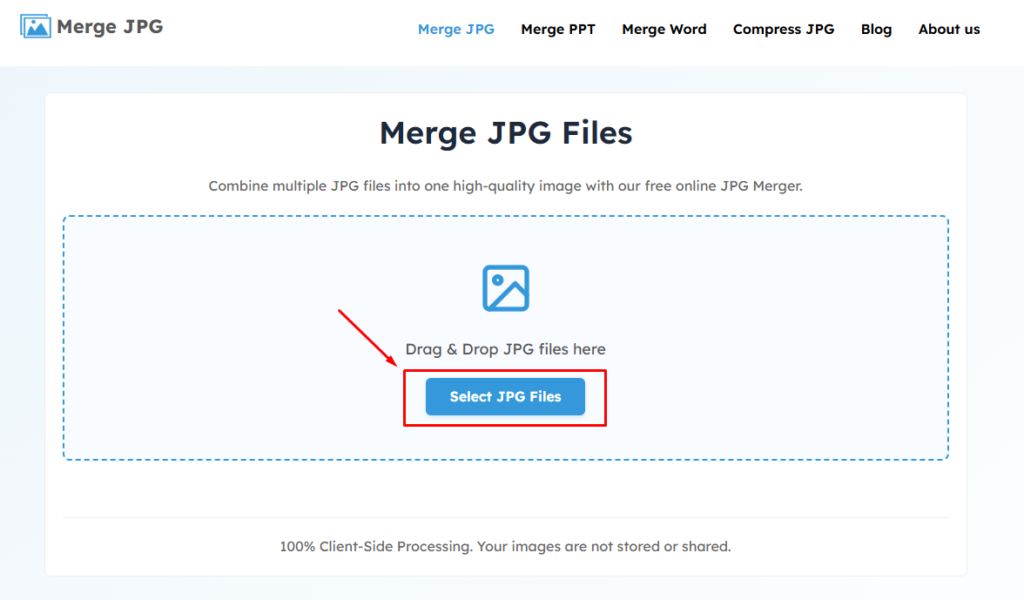
Step 1: Upload Your Pictures: Click Select JPG Files to upload the two pictures you want to merge. You can also drag and drop your files into the tool.
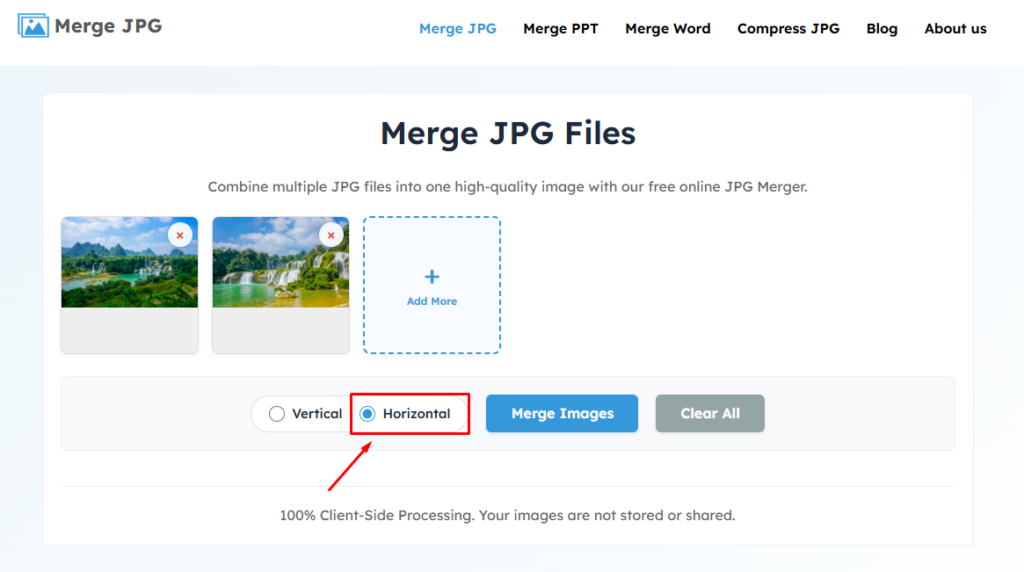
Step 2: Choose the Horizontal Layout: Select the Horizontal layout to place both pictures side by side. Rearrange their order if needed.
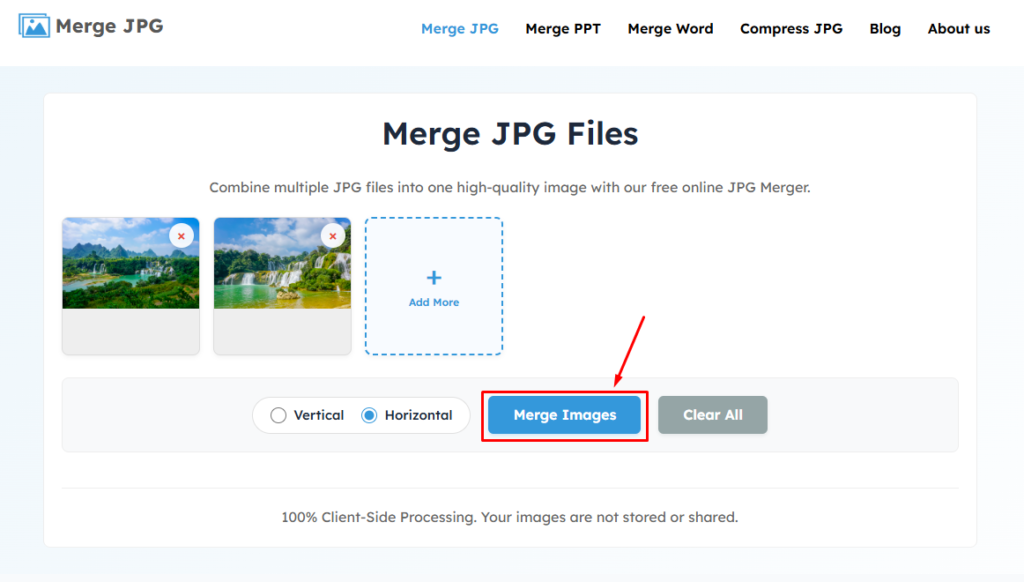
Step 3: Merge Your Pictures: Click the Merge Images button to instantly combine your two pictures into a single high-quality image.
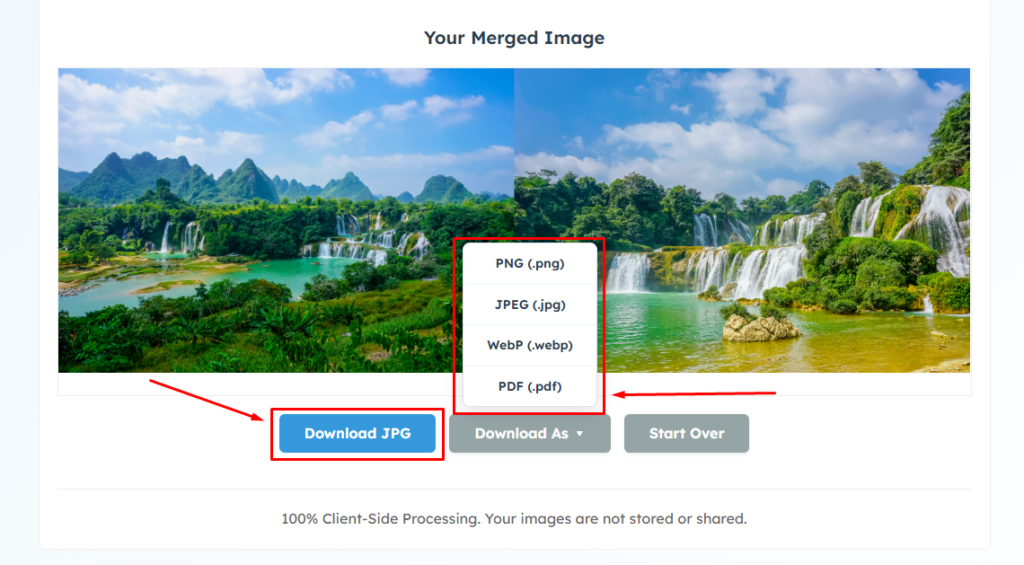
Step 4: Download Your Merged Picture: Click Download JPG to save your merged image as a JPG file. If you need a different format, click Download As and choose PNG, WebP, or PDF from the dropdown.
Benefits of Using an Online Image Merger
Using an online image merger is one of the quickest and easiest ways to combine two pictures side by side. Since everything works directly in your browser, you can create a merged image in just a few clicks without installing any software.
- No software required: Merge your pictures without downloading Photoshop or any other editing app.
- Fast and easy to use: Upload your images, choose a layout, and merge them within seconds.
- Works on any device: Combine images on Windows, Mac, Android, or iPhone using any modern web browser.
- High-quality output: Download your merged image without noticeable quality loss.
- Supports multiple formats: Upload JPG, PNG, WebP, and GIF files, then download the final image as JPG, PNG, WebP, or PDF.
- Privacy-friendly: Your images are processed securely in your browser, so they aren’t uploaded to a server.
- Free with no watermark: Create and download merged images without signing up or paying for premium features.
Conclusion
Merging two pictures side by side is a quick and effective way to create cleaner, more engaging visuals for comparisons, presentations, social media, or personal projects. With an online image merger, you can combine your images in just a few clicks without installing software or sacrificing image quality.
Whether you’re working with JPG, PNG, WebP, or GIF files, the Merge JPG tool makes the process simple. Just upload your pictures, choose a horizontal layout, merge them, and download the final image in your preferred format. Try it today and create professional-looking side-by-side images for free in seconds.